with love
Support
Sitebuilder
Product
info@lalilala.org
We help creative to become financially independent

For further information contact us

LaLILaLa.org

Made with love in Tiohtià:ke Montréal, Québec - Canada
Made with love in Tiohtià:ke Montréal, Québec - Canada
Support
Sitebuilder
Product
Community
Support
General settings for configuring your mailbox
How to Add Professional Emails to Your Lalilala Website
First of all, you need to create a professional email, which is very simple.
Log in or sign up at lalilala.org.
1 In the menu on your right, there is an icon that looks like a gear. Click it.
2 Now, a large menu will appear, with one big button that says Email Manager or Email or Gestionnaire des emails (depending on the language you're using). Click it to open the settings.
3 There, you will see a big button that says Add Email Box or Ajouter une boîte email (again, depending on your language settings). Click it.
4 Now, you need to set up the email. You can choose names like contact, info, or admin.
Click or press the “Add Email Box” button. Choose a name and a password.
For further information contact us
For further information contact us
Project supported by:







1
2
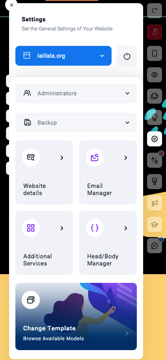
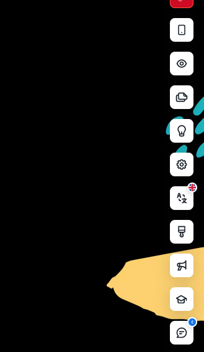
Click it to open the settings of your personal website.
In the menu on your right, there is an icon that looks like a gear.
4
3
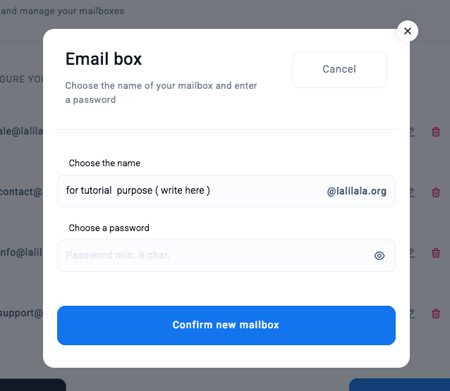
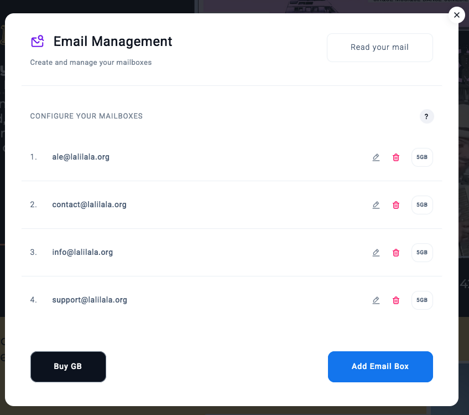
You will see a big button that says Add Email Box or Ajouter une boîte email (again, depending on your language settings). Click it.
Now, you need to set up the email. You can choose names like contact, info, or admin.
Click or press the “Add Email Box” button. Choose a name and a password.
How to connect your professional emails with Gmail, Hotmail, or another email client.
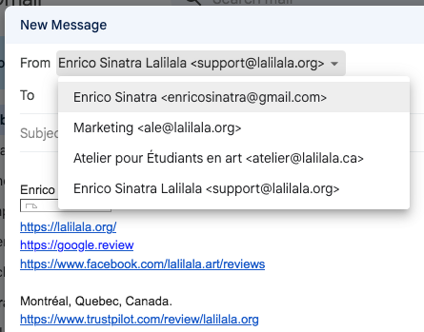
With Gmail, Hotmail, Yahoo, Protonmail, or any other email you have, you can create different aliases and have them all converge into your inbox. This means you can send, receive, and write from your regular Gmail email while managing all your other emails with your professional domain.
Tutorial with Gmail examples (but valid for all):
Open Gmail.
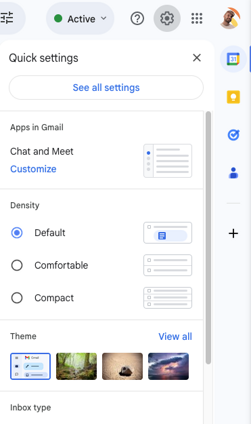
1 On the left side, you will always find an icon that looks like a gear (settings). Click on it.
2 Now, a plus button will appear that says "All Settings" (the language may change depending on your browser's language).
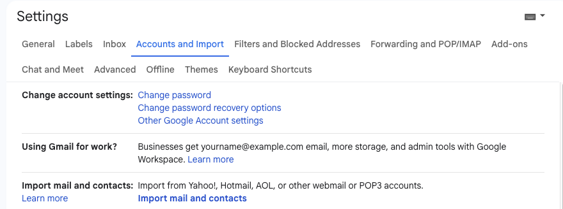
3 Next, click on the Accounts and Import tab. In this section, there is a paragraph about emails,
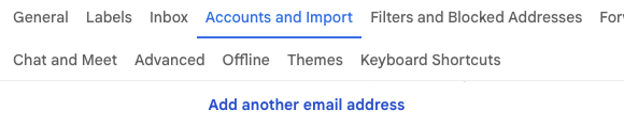
4 where you can click on Add another email.
A yellow panel will open, and now you're setting up your emails.
1
3
2
4
Sending emails with another email, but from the same email.
In these two examples, we have replaced your personal emails with example@nameofyourwebsite and info@yourwebsite. You should not use these emails but instead write your own email addresses.
1
2
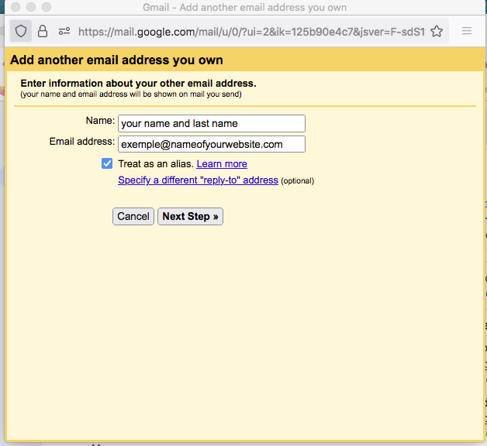
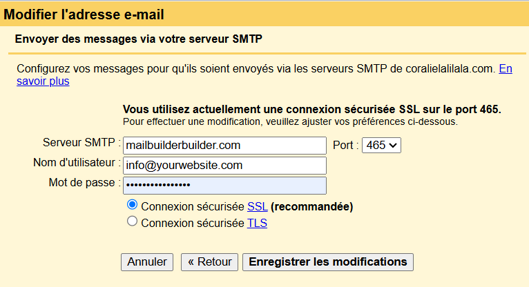
In the second window, you will find the parameters to add: the server, port, username, and password. Click Save, and you're done.
In the first window, Gmail asks you for a name. You can enter your artist name, or, for privacy reasons, you can choose a name that ensures no one knows your real identity.
SMTP Configuration:
Server SMTP: mailbuilderbuilder.com
Port: 465
Username: your email@yourwebsite.com
Password: the selected password
SSL Protocol: Active
Receive Professional Emails in Your Gmail – Step-by-Step Guide
Now you can receive your professional emails directly in your Gmail. Just two more clicks!
2
1
3
4
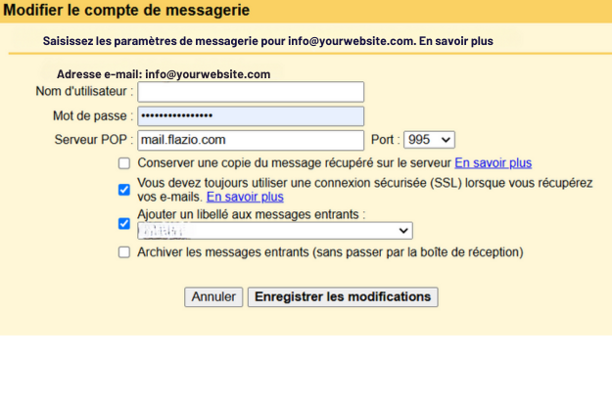
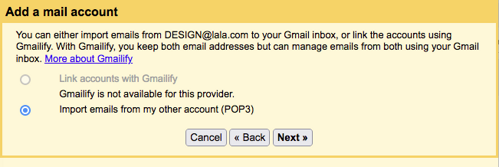
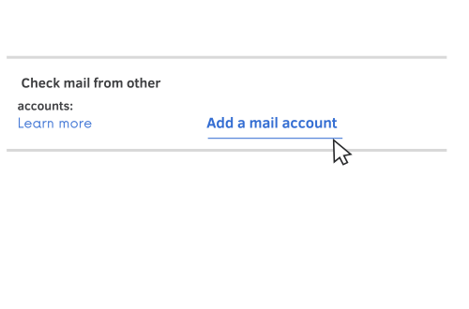
1 Now, you need to go back to Gmail settings, in the same tab as before (Accounts and Import), and scroll down to “Check mail from other accounts” , “Add a mail account”.
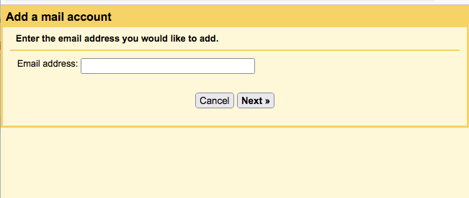
2 Enter the email you set up earlier and click Next.
3 Select the option "Import emails from my other POP3 account."
4 Choose port 995, enable SSL connection, and you can add a label to identify emails received from this account.
Incoming Mail
IMAP Configuration:
Username: your email
Password: the selected password
Port: 995
Server: mail.flazio.com
SSL Protocol: Active
How to Configure DNS Records to Link Your Domain to Your Website
After purchasing the PRO account with DNS Service, it's necessary to set up the records from your current provider's DNS Configuration panel to enable the activation of your website.
The types of records to modify in order to link your domain to the website you've created with us are Record A and Record AAAA.
For Record A, you will need to insert this record:
Leave the Host Name (Hostname) field empty (or enter @), and set the IP Address to: 35.190.27.135.
Now move to the CNAME record and input these parameters:
In the Host Name (Hostname) field, enter 'www', and as the value, input your domain name, for example: mariorossi.com.
Next, in the AAAA Record, you will need to input a single record:
Leave the Host Name (Hostname) field empty (or enter @), and input the IP Address value: 2600:1901:0000:0609:0000:0000:0000:0000.
Important to know: A, AAAA, and CNAME DNS records are unique, and two or more records with the same characteristics pointing to different IP addresses cannot coexist. Always ensure that there are no other similar DNS records beyond those mentioned in the guide.